# Not working in "Windows Sandbox"
**URL:** https://discourse.paraview.org/t/not-working-in-windows-sandbox/15528
**Category:** Development
**Created:** [October 9, 2024, 2:25pm UTC](https://discourse.paraview.org/t/not-working-in-windows-sandbox/15528 "2024-10-09T14:25:22Z")
**Posts on this page:** 2
**Page:** 1
### Author:  [@BanucMKappNiles](https://discourse.paraview.org/u/BanucMKappNiles)
#### Post date: [October 9, 2024, 2:25pm UTC](https://discourse.paraview.org/t/not-working-in-windows-sandbox/15528/1 "2024-10-09T14:25:22Z")
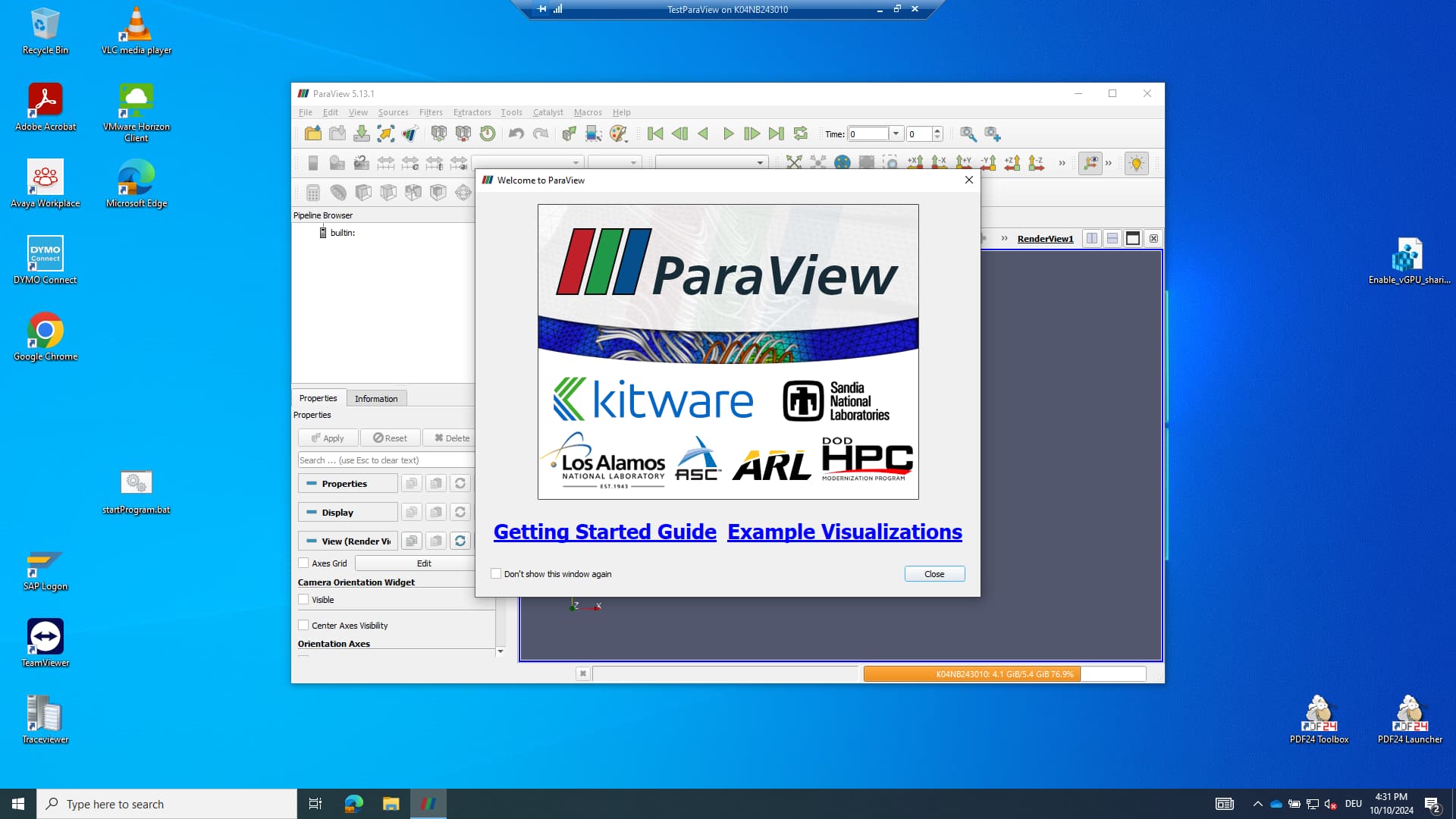
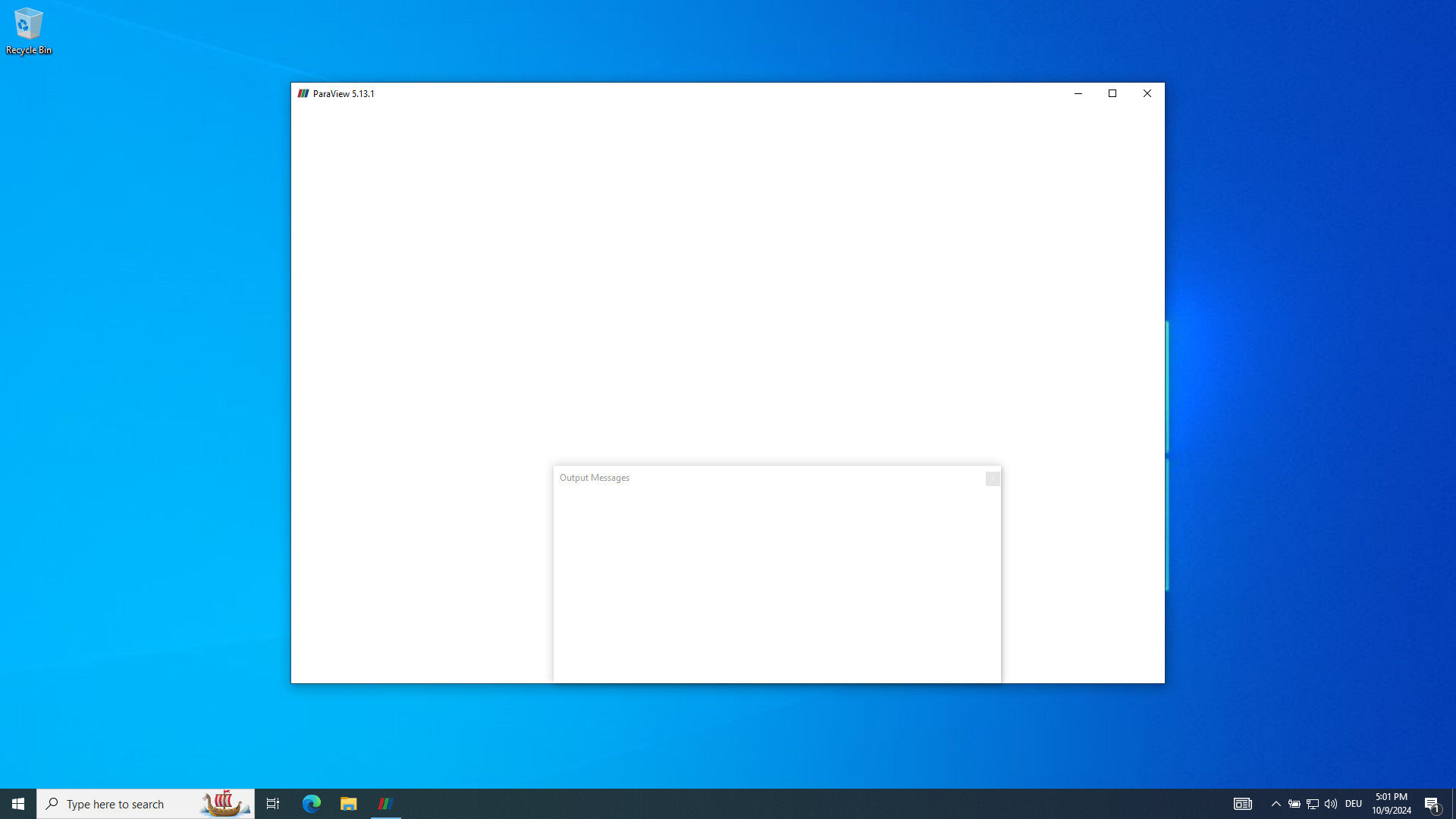
I am using Windows 10 Enterprise and I am trying to run it in “[Windows Sandbox](https://learn.microsoft.com/de-de/windows/security/application-security/application-isolation/windows-sandbox/windows-sandbox-overview)”. It is starting for 2 seconds with a window with white content and then it crashes and closes. Can someone maybe try to run it in Windows Sandbox if it is working or not?
The root problem seems to be that “Windows Sandbox” is running always in a RDP session. See also [Failure to use Paraview with RDP - Development - ParaView](https://discourse.paraview.org/t/failure-to-use-paraview-with-rdp/14123).
ParaView version: 5.13.1
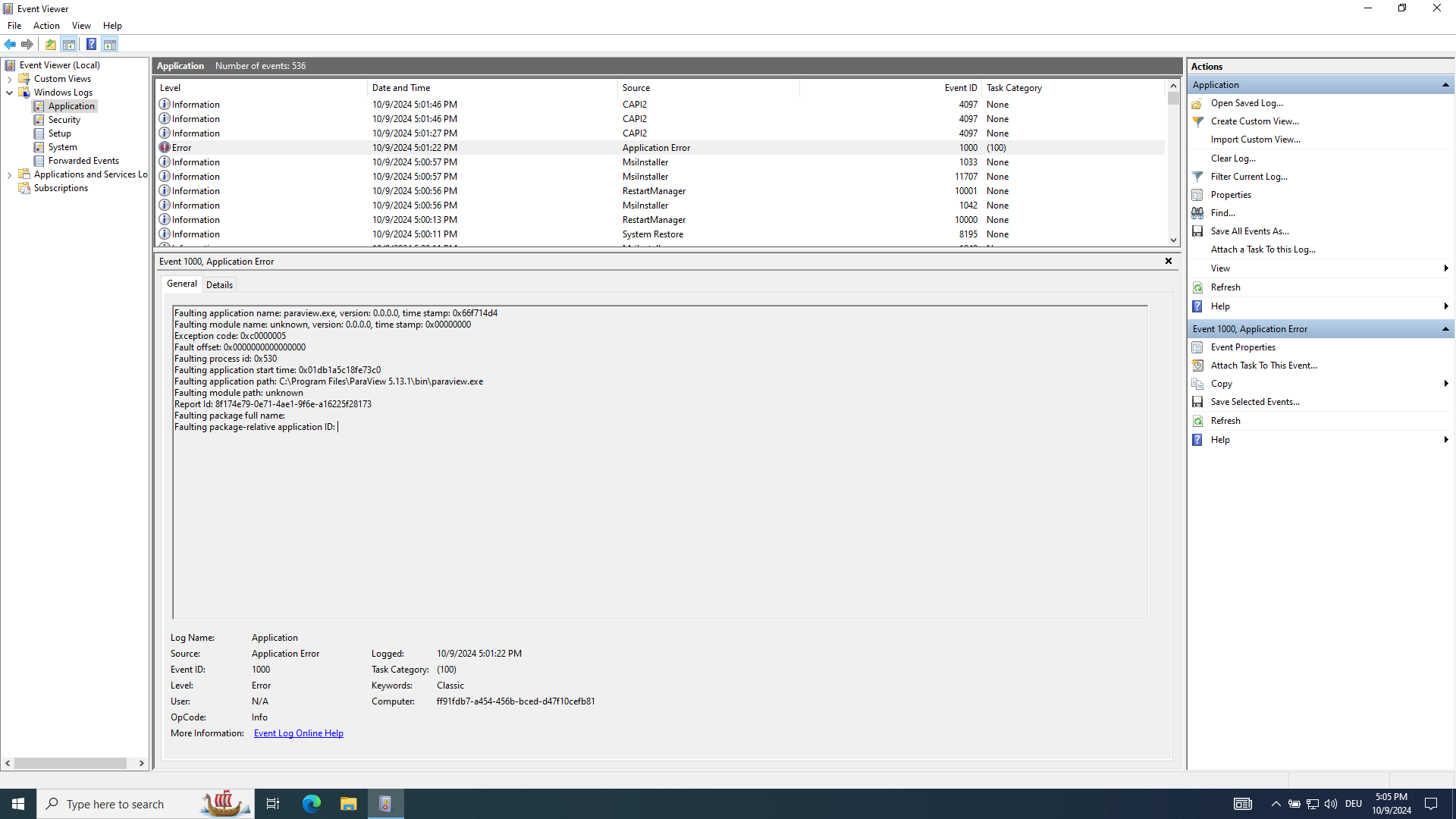
Logged events with eventvwr:
```auto
Faulting application name: paraview.exe, version: 0.0.0.0, time stamp: 0x66f714d4
Faulting module name: unknown, version: 0.0.0.0, time stamp: 0x00000000
Exception code: 0xc0000005
Fault offset: 0x0000000000000000
Faulting process id: 0x530
Faulting application start time: 0x01db1a5c18fe73c0
Faulting application path: C:\Program Files\ParaView 5.13.1\bin\paraview.exe
Faulting module path: unknown
Report Id: 8f174e79-0e71-4ae1-9f6e-a16225f28173
Faulting package full name:
Faulting package-relative application ID:
```
dxdiag output:
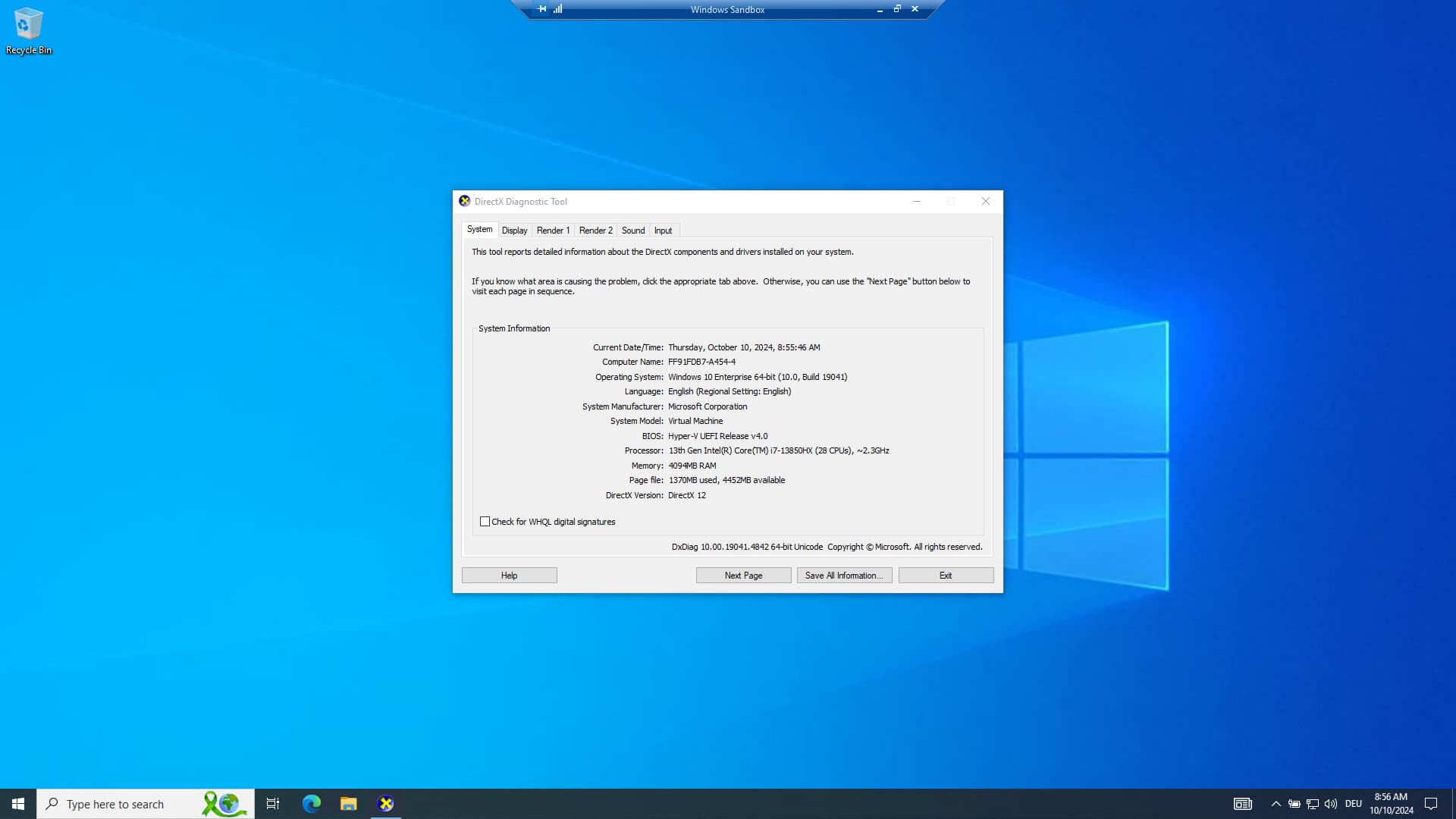
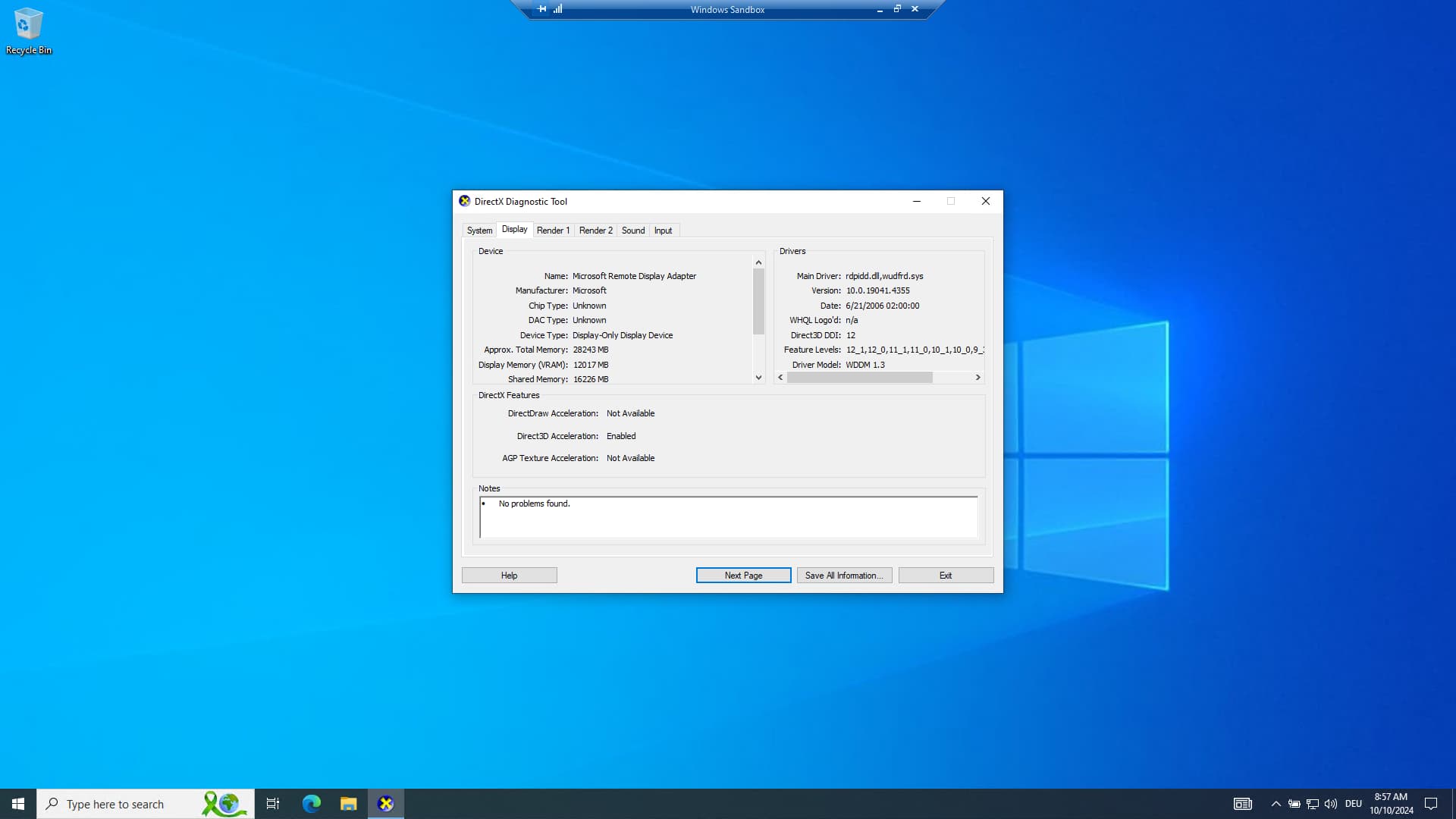
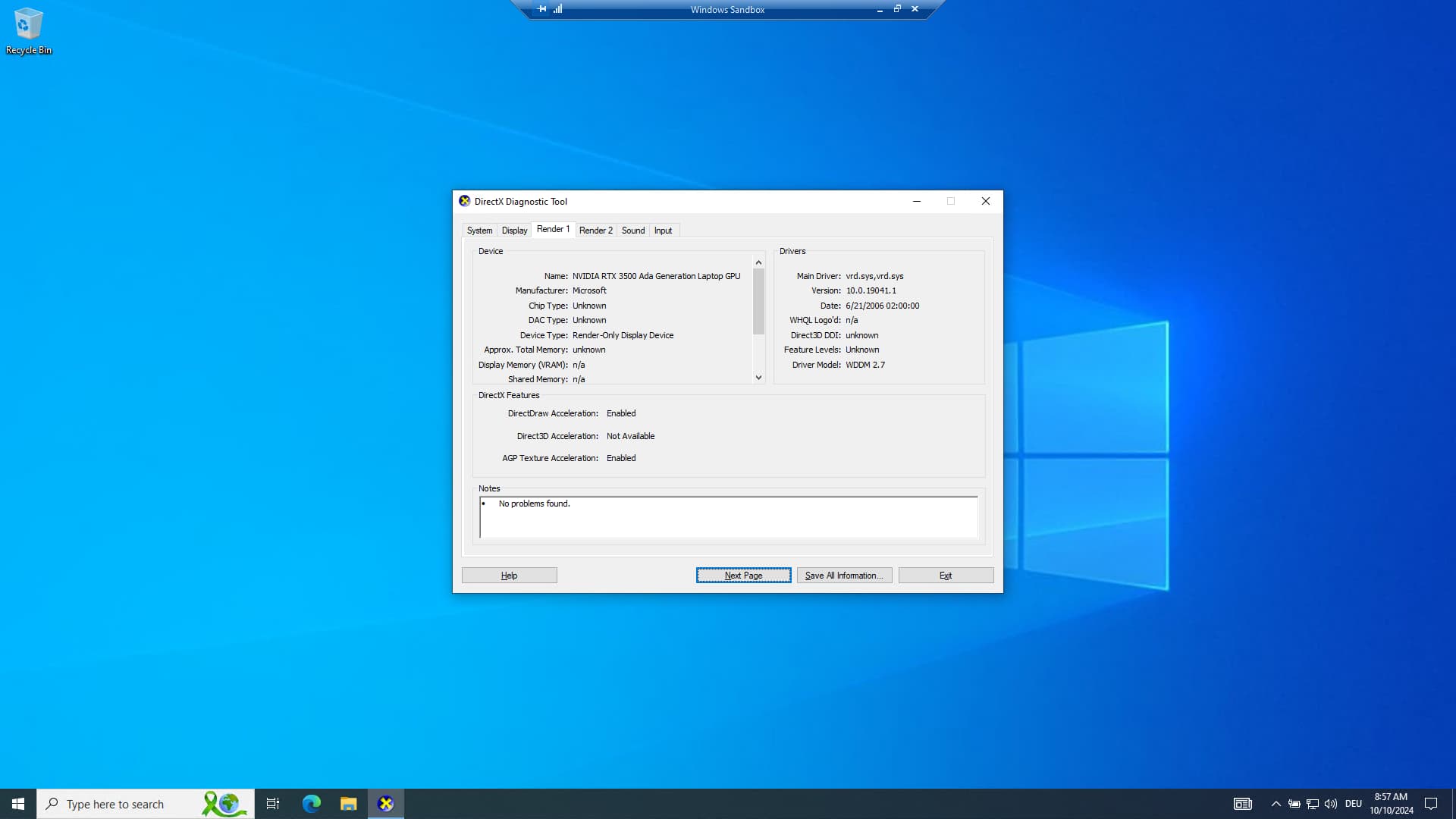
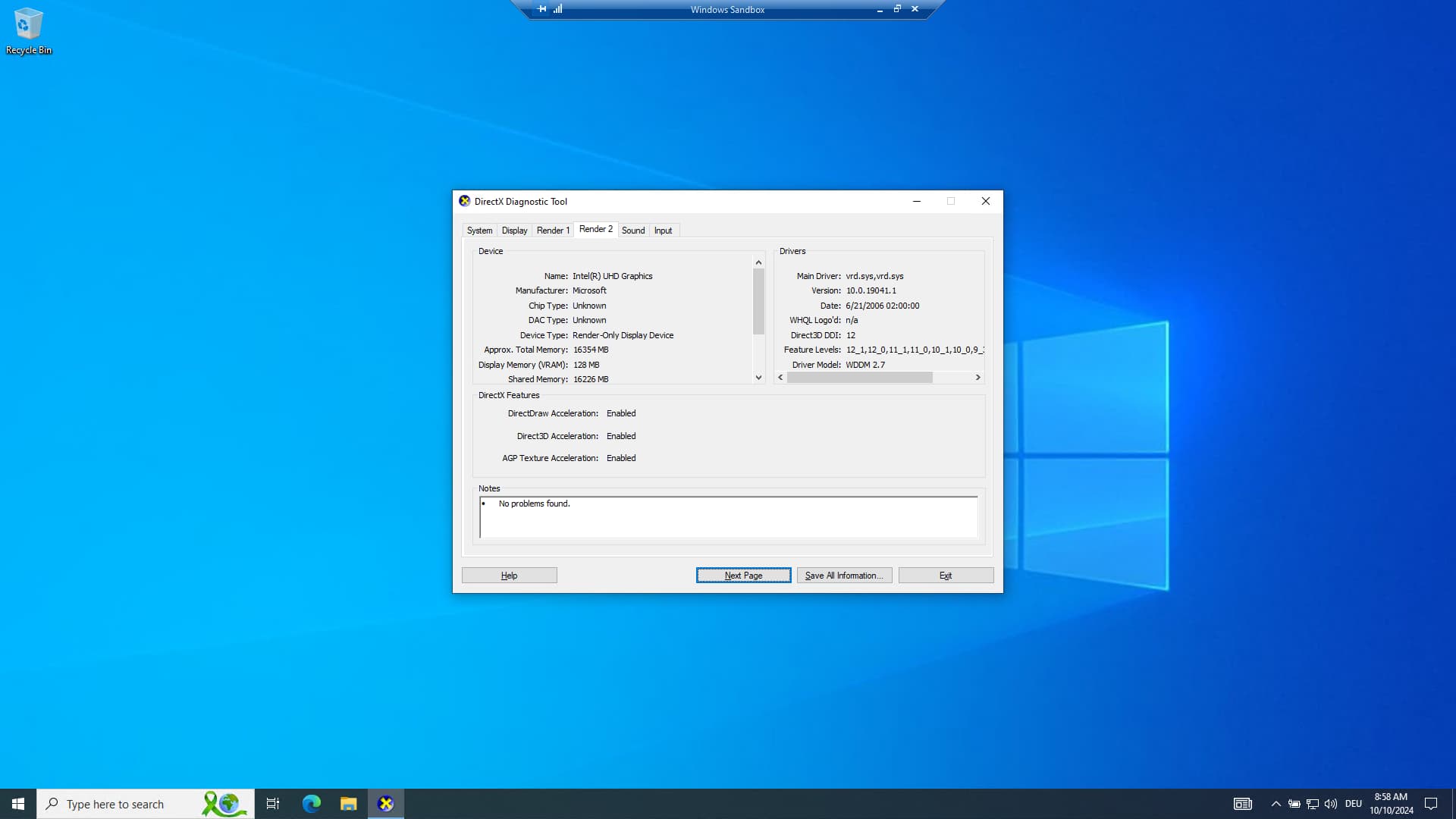
[DxDiag.txt](https://discourse.paraview.org/uploads/short-url/e7oXxTle8dxdIZuf8RmQ79PtqXk.txt) (51.9 KB)
---
### Author:  [@BanucMKappNiles](https://discourse.paraview.org/u/BanucMKappNiles)
#### Post date: [October 10, 2024, 1:31pm UTC](https://discourse.paraview.org/t/not-working-in-windows-sandbox/15528/2 "2024-10-10T13:31:36Z")
This is a workaround solution. The principle is that instead of a non-persistent virtual machine (Windows Sandbox) a persistent virtual machine is being used with Hyper-V.
1. create a vhdx file of your current system
2. create a new virtual machine from the vhdx file using Hyper-V-Manager
3. passthrough GPU to Hyper-V machine using “GPU Partitioning (GPU-P)”
Details
# create a vhdx file of your current system
Use [Disk2vhd - Sysinternals | Microsoft Learn](https://learn.microsoft.com/en-us/sysinternals/downloads/disk2vhd) to create vhdx of the whole system (EFI partition and Recovery partition included).
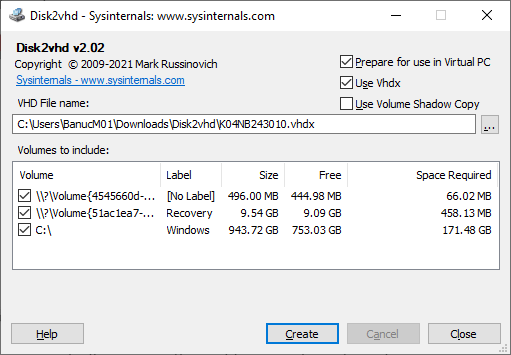
Make sure to check “Prepare for use in Virtual PC”.
# create a new virtual machine from the vhdx file using Hyper-V-Manager
- start "Hyper-V-Manager in admin mode
- create new virtual machine
# passthrough GPU to Hyper-V machine using “GPU Partitioning (GPU-P)”
Basically follow the steps described in [How to Assign (Passthrough) a Physical GPU to a Hyper-V Virtual Machine | Windows OS Hub (woshub.com)](https://woshub.com/passthrough-gpu-to-hyperv-vm/).
Here is a summary of the steps that I had to do:
- start PowerShell in admin mode
- Use the **Get-VMPartitionableGpu** (Windows 10) or **Get-VMHostPartitionableGpu** (Windows 11) command to check if your graphics card supports GPU partitioning mode.
- get the source code of [GitHub - jamesstringer90/Easy-GPU-PV: A Project dedicated to making GPU Partitioning on Windows easier!](https://github.com/jamesstringerparsec/Easy-GPU-PV)
- allow running PowerShell scripts in the current session
`Set-ExecutionPolicy -Scope Process -ExecutionPolicy Bypass –Force`
This step is needed because the script that we want to execute calls another script from the same directory. If you can’t execute this step then you have to execute each step of the following ps1 script manually.
- Run the script (in the directory of Easy-GPU-PV):
`.\Update-VMGpuPartitionDriver.ps1 -VMName myVM1 -GPUName "AUTO"`
The script copies the GPU drivers from the host to the VM. This step is needed because the virtual machine doesn’t have the GPU drivers yet in GPU-P mode.
- Now change the VM settings and assign the GPU to it:
- `Set-VM -VMName myVM1 -GuestControlledCacheTypes $true -LowMemoryMappedIoSpace 1Gb -HighMemoryMappedIoSpace 32Gb`
- `Add-VMGpuPartitionAdapter -VMName myVM1`
- disable checkpoints
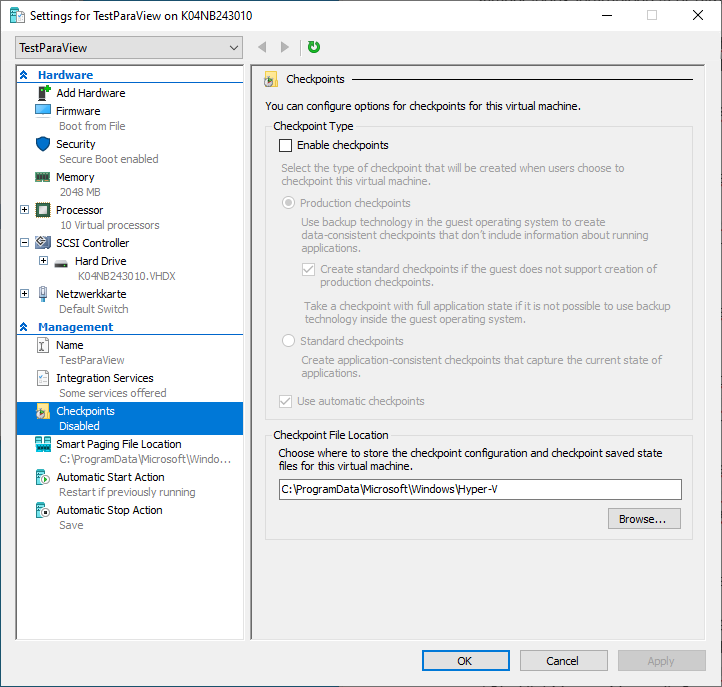
This step is required because Hyper-V is by default trying to create an automatic checkpoint at the start of the VM. But this is not possible any more with GPU-P enabled.
- test if everything is working by starting the VM and calling `dxdiag`
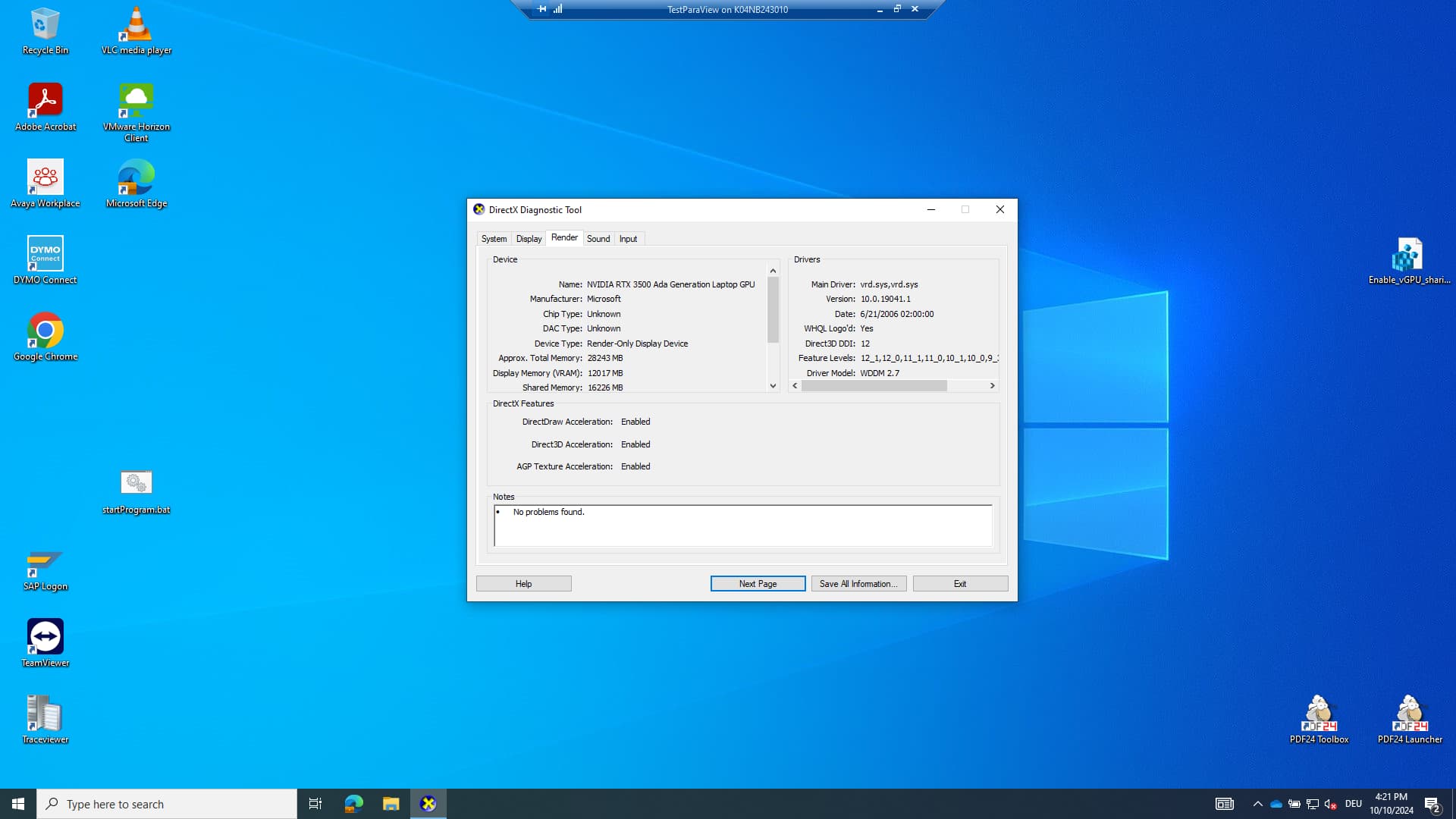
Without GPU-P enabled there is no tab “Render”.
- test if everything is working by looking at device manager
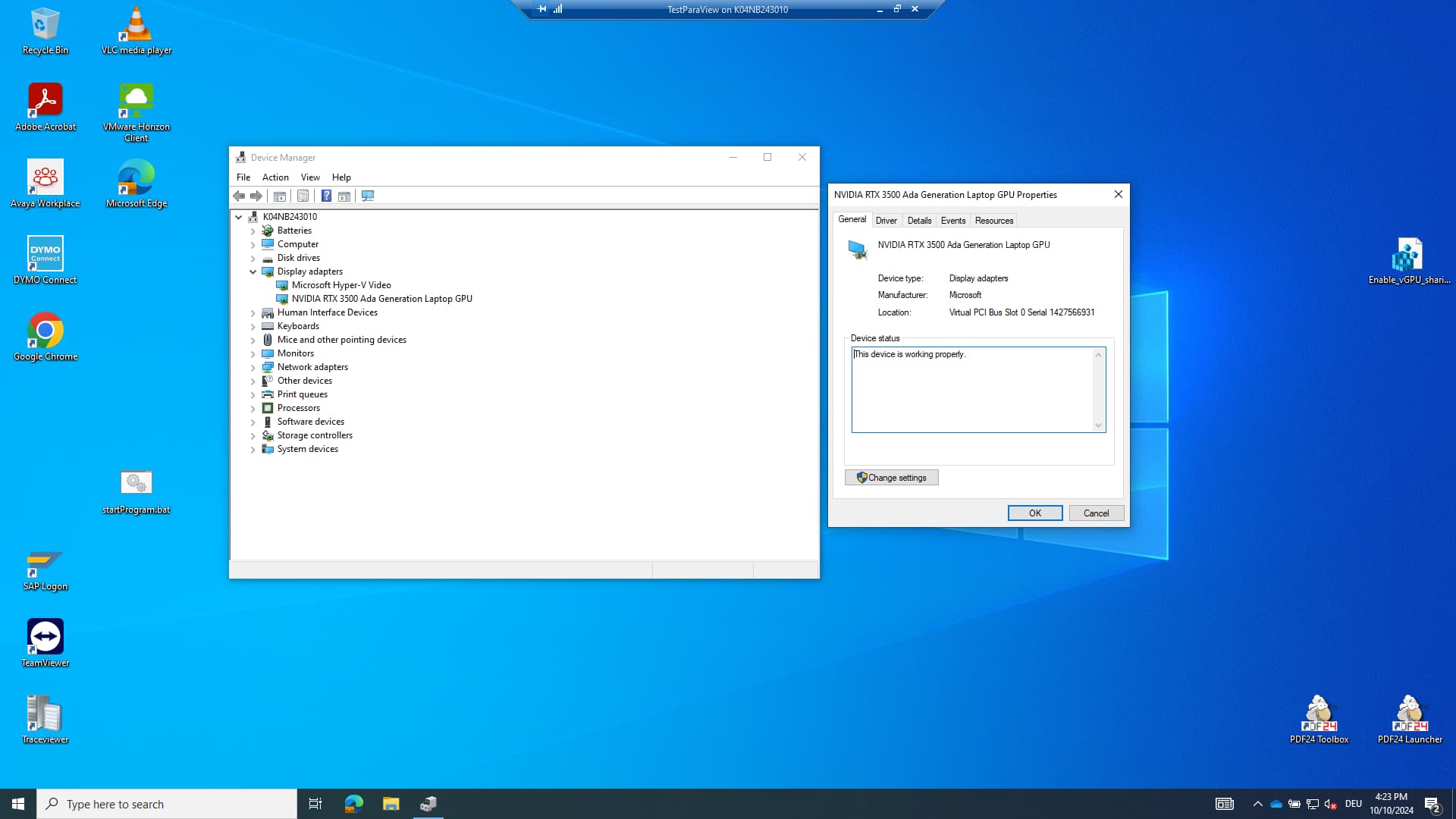
Without GPU-P there is just “Microsoft Hyper-V Video” as display adapter and no graphics card.
- test by checking OpenGL version
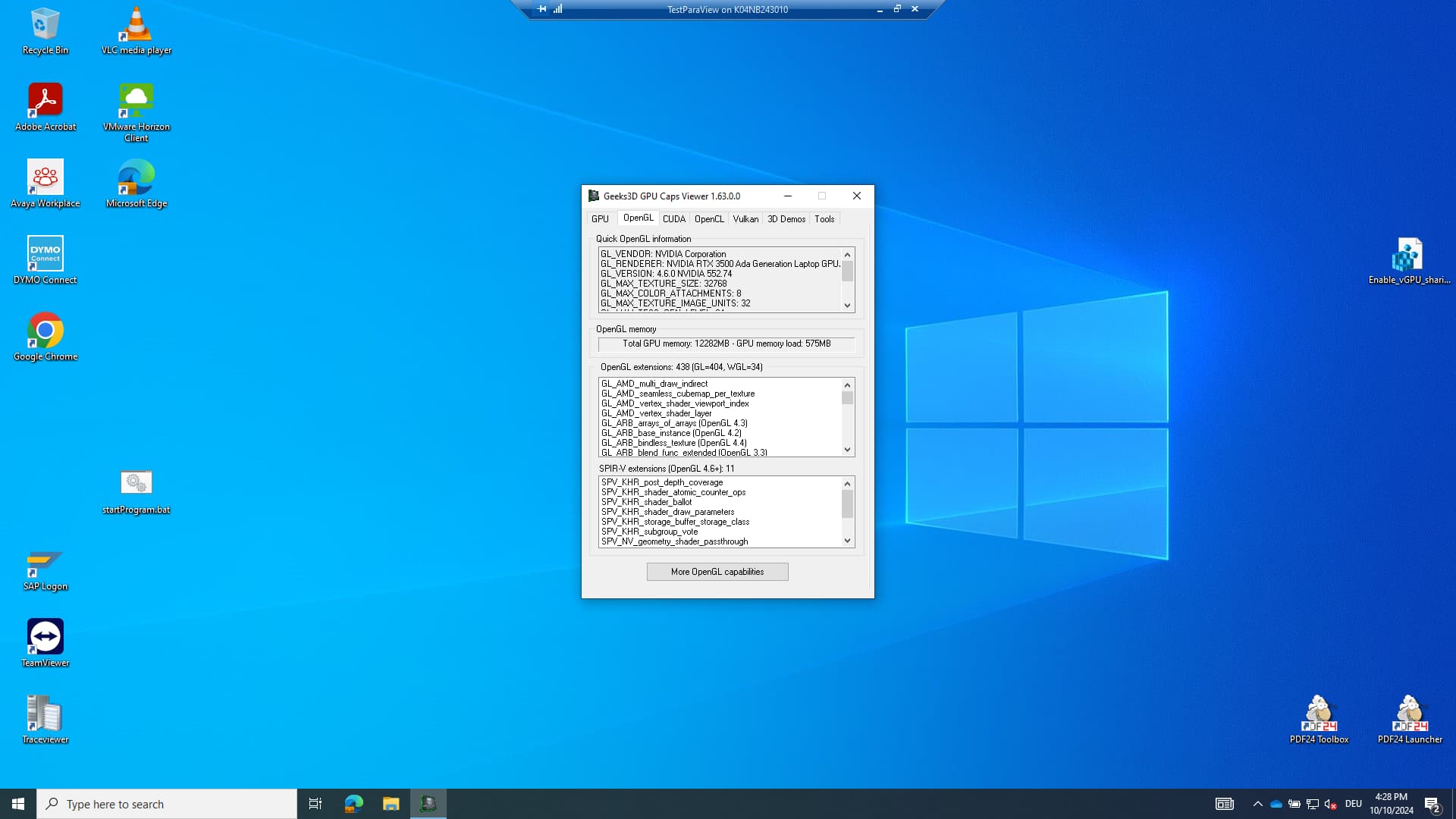
here it is 4.6.0, without GPU-P the OpenGL version is 1.1 (which is not good enough for ParaView)
- test by starting ParaView